Unable to Import
When Qlarity reports rows it was unable to import, most of them are $0 administrative claims that Qlarity filters out on purpose. Even so, review the full list — a few may be real claims held back by a blank cell that needs fixing. The best way to keep this list short is to filter these claims out in Central Reach before you ever download.
Why rows get skipped
- Zero-amount claims — the most common reason. Qlarity is revenue-based, so it filters out $0 administrative claims. You don't want those cluttering QuickBooks with empty invoices.
- A blank cell in the row — for example, a missing location. These can be real claims, so don't ignore the list.
Filter in Central Reach first
The biggest time-saver is to filter these claims out at the source. Set the filter up once, and every download afterward is already clean — no zero-amount rows and no non-billable claims.
- Log into Central Reach. Click the Billing dropdown, then Billing.
- Click Clear Filters.
- Set your date range and click Apply.
- Scroll to the Charges column. Open the Agreed dropdown and choose Has charges.
- Go back to the filter ribbon on the left. Open the Service Codes dropdown.
- Under Service Category, set Administrative to No and Other to No.
- Click Apply.
- Click SAVE FILTERS. Name it something you'll recognize — for example, "Billable Claims."
From now on, when you download, pick your saved filter, update the date range, and download. The zero-amount and non-billable claims are already gone, so they won't show up as unable to import.
When a real claim shows up in the list
If you see an unable-to-import row that isn't a zero-amount claim, it's most likely a real claim with a blank field. Here's how to fix it:
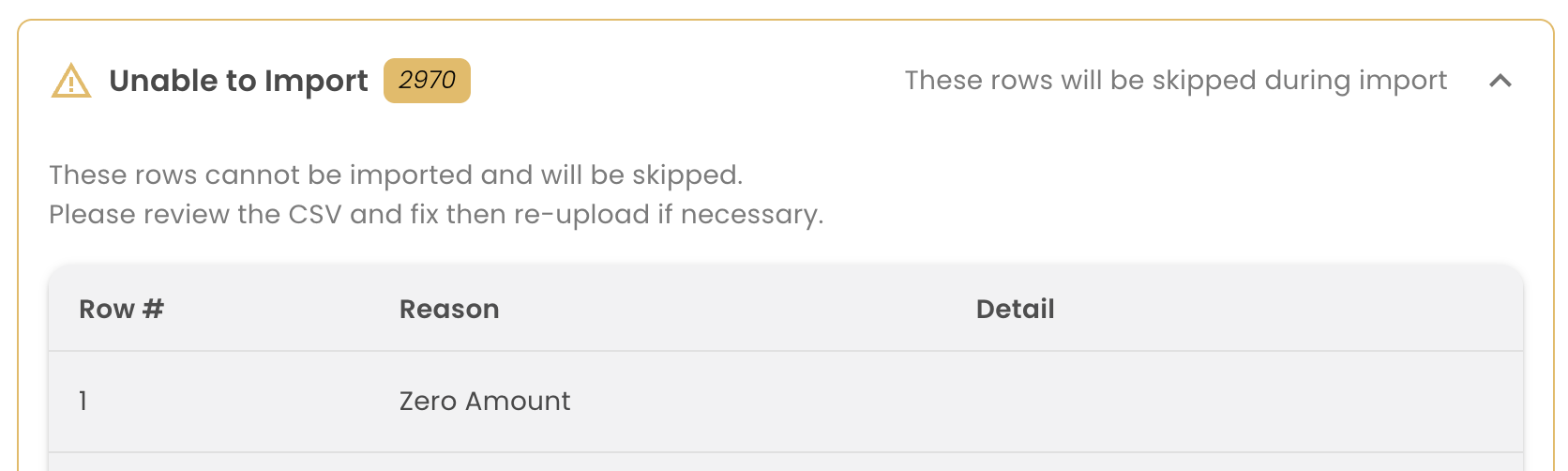
- Read the reason Qlarity gives — it tells you what's missing (for example, a blank location).
- Open the billing CSV and find that row.
- Fill in the missing information manually.
- Re-import.
That pulls the claim back in so it counts toward revenue like it should.