Understanding Sync Results
A sync happens in two stages, so Qlarity shows results at two places. First, when you upload a CSV, the CSV Import page reports how each row was classified. Later, on the Invoices page, each invoice carries a badge that tracks its progress into QuickBooks Online.
Import analysis results
After you upload a billing CSV, Qlarity reads every row, classifies it, and shows a set of stat cards summarizing what it found. These describe the rows in your file — not whether anything has reached QuickBooks yet.
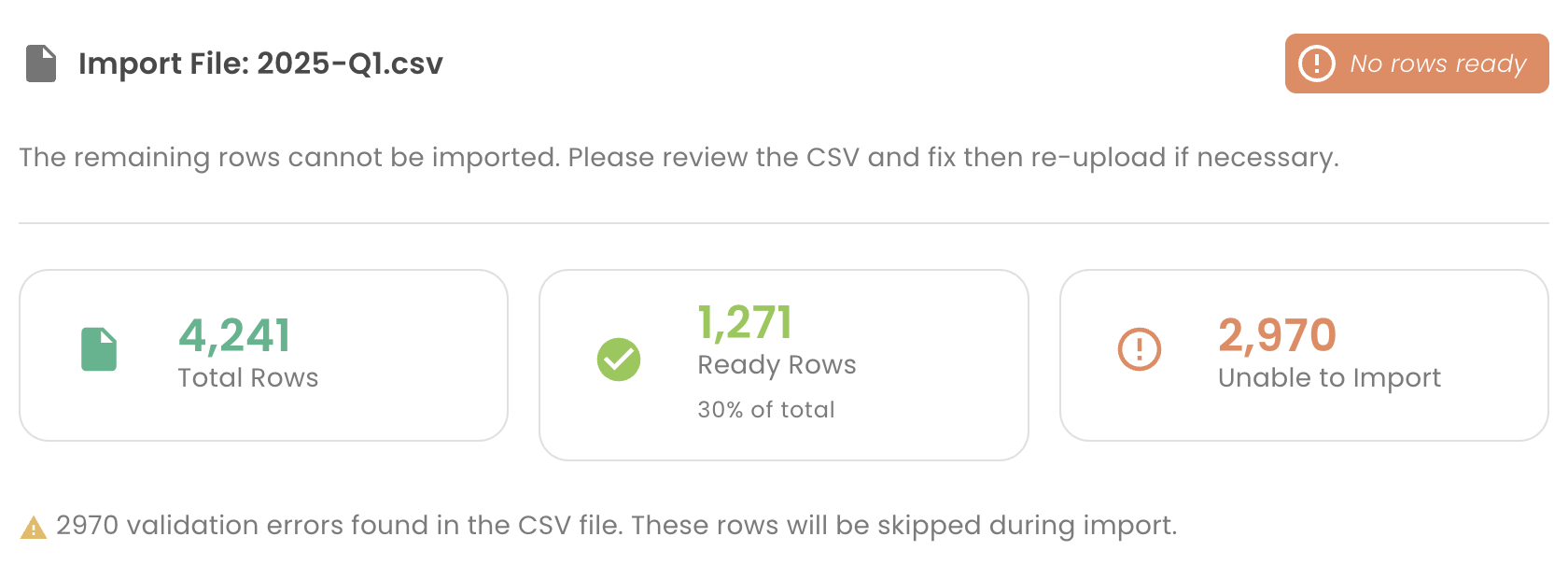
- Total Rows — the number of rows Qlarity read from the CSV.
- Ready Rows — rows that are fully mapped and ready to become invoices. The card also shows these as a percentage of the total.
- Not Ready — rows where at least one Customer, Service, or Location is
unmapped. The subtitle reads
{n} unmapped entities. These are resolvable: create the missing mapping, then click Refresh Analysis to re-classify the rows. See Managing mappings and Mapping service entities. - Imported — rows that have already been turned into invoices.
- Unable to Import — rows with a data problem that mapping can't fix. These need a corrected CSV re-upload rather than a mapping.
- Skipped — Payor Change — rows Qlarity skipped automatically because the payor changed in Central Reach after the invoice had already synced. See Skipped rows: payor change.
A status chip on the summary sums up the analysis at a glance. It reads one of: Import complete, All rows ready, Ready to continue, Partially Imported, Partial ready, or No rows ready.
The Unable to Import section
Rows counted under Unable to Import are listed in their own section with three columns: Row #, Reason, and Detail. The Reason is one of:
- Missing Required
- Invalid Format
- Invalid Date
- Invalid Number
- Duplicate Row
- Reference Not Found
- Zero Amount
No PHI is shown here
The list identifies rows by number and reason only — never by patient or claim detail. To fix a row, open your source CSV at that row number, correct the problem, and re-upload.
For a fuller walkthrough of these reasons and how to clear them, see Unable to Import.
Invoice sync status
Once ready rows become invoices, the Invoices page (app.getqlarity.app/app/invoices) tracks each invoice on its way into QuickBooks Online. Every invoice carries a sync-status badge.
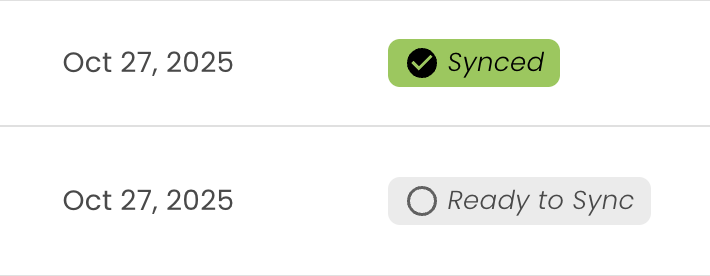
- Ready to Sync — created by import, but not yet pushed to QuickBooks.
- Syncing — currently being pushed to QuickBooks.
- Synced — successfully created in QuickBooks.
- Failed — the push to QuickBooks failed. The invoice shows the reason.
- Needs Re-sync — a previously synced invoice changed since it synced (for example, a later import updated it) and should be synced again.
Filtering the list
The Invoices list opens with an actionable default filter that shows only invoices needing your attention — those marked Ready to Sync and Needs Re-sync. A banner explains the filter, and a View all statuses option removes it. You can also filter by Status, Invoice #, Customer, and a Date range.
Tip
The example data reference is a sortable, illustrative set of results you can explore to see how the list behaves.
Sync History
Open any invoice to see its Sync History timeline. It lists Sync Successful and Sync Failed entries in order, and each failure shows the error message returned by QuickBooks — the fastest way to see why a Failed invoice didn't go through.
For how the columns in your CSV become fields on a QuickBooks invoice, see Field mappings.