Mapping Unmapped Service Entities
Qlarity needs to know which QuickBooks product or service each claim matches. You do this by mapping a procedure code either to a product/service that already exists in QuickBooks, or to a new one you create. There are three entity types — Customer, Service, and Location — and two ways to work through them.
Where to start
The mapping tools appear on the CSV Import page whenever Qlarity finds unmapped entities in your upload. You have two ways to work through them:
- Bulk (recommended if you have several) — click Map Unmapped Entities. It runs as a guided wizard and walks you through each unmapped entity one after another.
- One at a time — in the Unmapped Entities list, click the Map button on the row you want to handle.
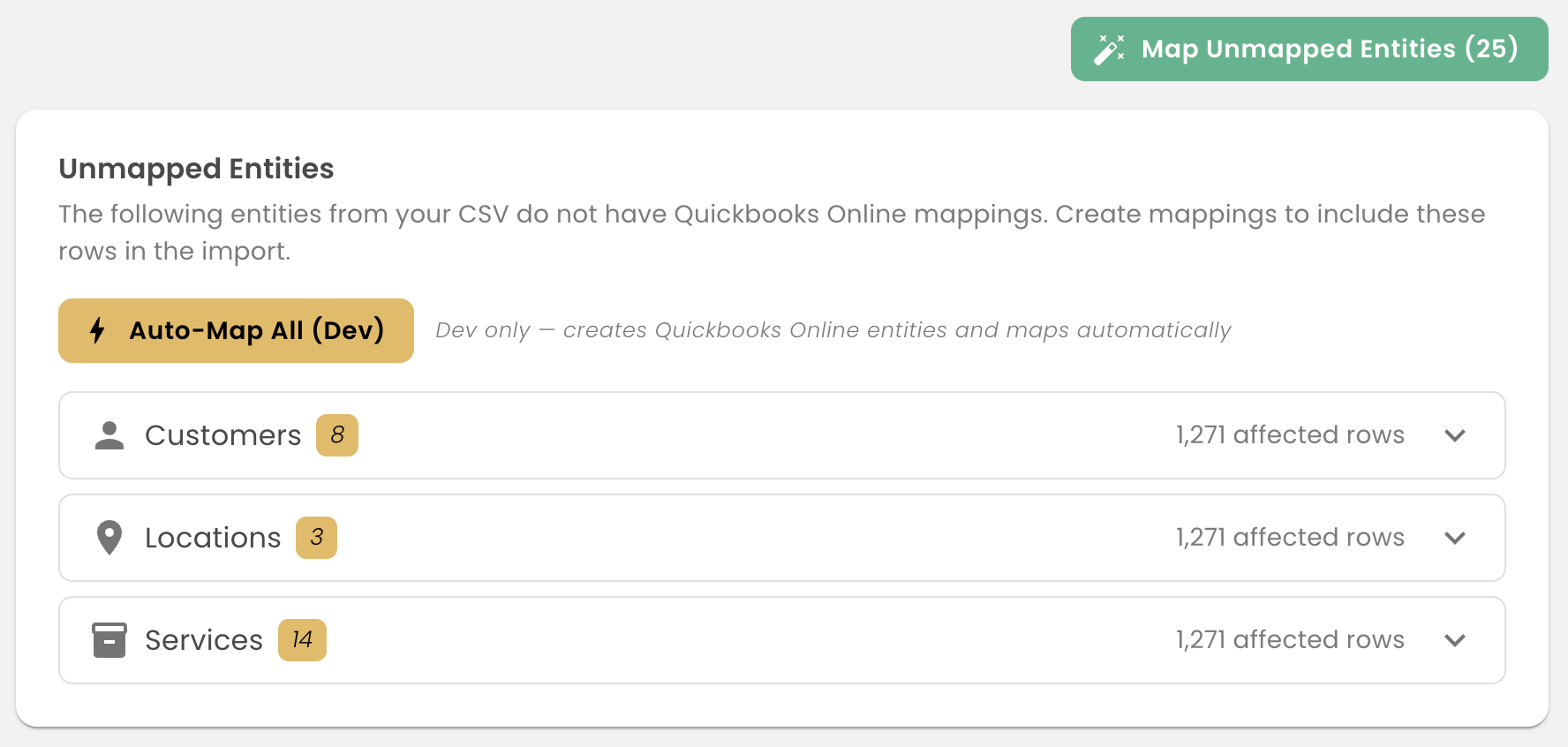
Both open the same mapping window, so pick whichever fits how many entities you have.
Mapping an entity
The mapping window shows the row info at the top and gives the QuickBooks side two toggles — Search Existing and Create New. Use the row info to decide which path applies.
Path A — the item already exists in QuickBooks
- With Search Existing selected, type the QuickBooks product/service name into the search field.
- Select it when it appears.
- Click Save Mapping.
This tells Qlarity that the claim matches that existing item.
Path B — the item doesn't exist yet
For service items, Qlarity guesses the correct QuickBooks product to create. If that guess looks right based on the row info at the top, go with it. Otherwise, click Create New and fill in the fields:
- Name (required) — use the procedure code and modifier. For example, 97155, 97153, or 97153HO.
- Sales Description (optional) — Qlarity auto-fills this, and it's fully editable. Leave it blank, or drop in the standard definition of the code.
- Type (required) — choose Service (rather than Non-Inventory). QuickBooks requires this for this kind of item.
- Income Account (required) — pick which account this item's revenue lands in.
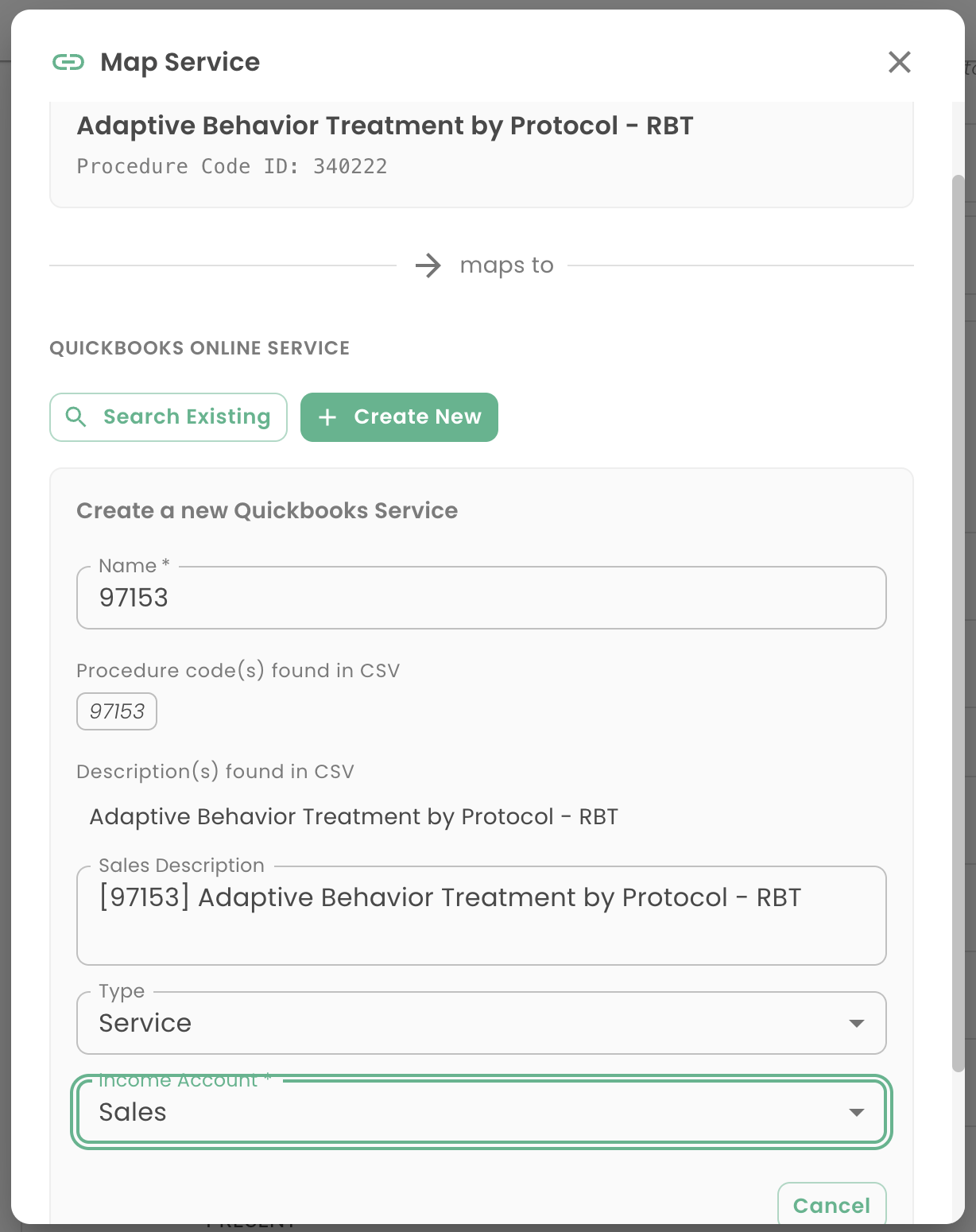
Then click Create and Map Service.
Choosing an income account
This is a real decision, not a throwaway field — you're choosing how your revenue gets grouped in QuickBooks reports. Common approaches include:
- By insurance payor
- By provider type (BCBA vs. RBT)
- All into one generic income account
Any of these work. Pick based on how you want to slice revenue later on your Profit & Loss. If you're not sure, a single generic account is the safe starting point — you can get more granular once you know which reports you actually want.