Skipped Rows: Payor Change
Sometimes the revenue for a claim is already in QuickBooks, sitting under the wrong payor. This happens when a claim's insurance payor is changed in Central Reach after the original invoice has already synced. Qlarity can't correct payor changes automatically yet — that's on the roadmap — so for now you move each affected claim to the correct payor by hand. This page walks you through that process.
What's happening
The insurance payor was changed in Central Reach after the original invoice had already synced to QuickBooks. The claim is now booked in QuickBooks under the original payor rather than the new one. Qlarity skips these rows on purpose so it doesn't create conflicting records, and leaves them for you to correct manually.
What you'll need
- The list of skipped payor-change claims (Qlarity provides this).
- The billing CSV you imported into Qlarity.
- Access to Central Reach and QuickBooks.
Correcting each skipped claim
Repeat these steps for each claim in the skipped list.
-
Get the Claim Id. Qlarity calls this the Billing Entry. It's the same value Central Reach calls Id.
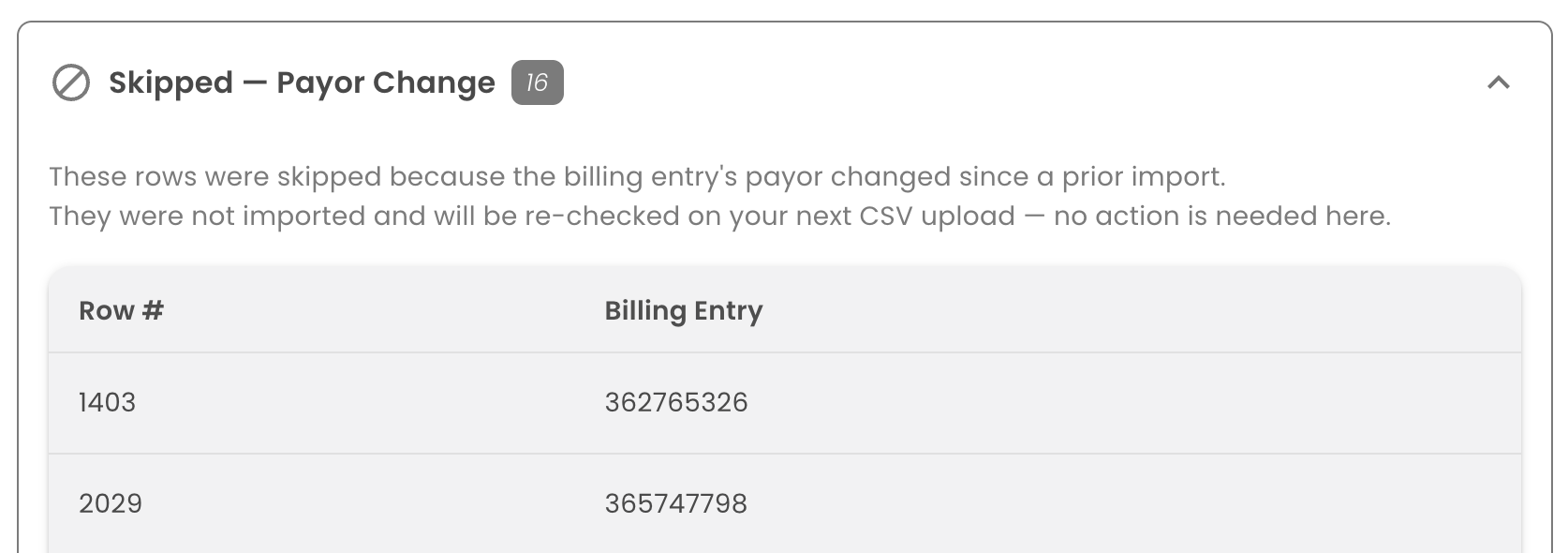
-
Open your billing CSV and find the claim. There are two ways to locate it:
- Easiest — use Find (Ctrl+F on Windows, Cmd+F on Mac) and paste the Claim Id. It lives in Column A (Id).
- Alternatively, use the row number Qlarity shows you and add 1. Qlarity doesn't count the header row, so Qlarity row 500 is spreadsheet row 501.
Highlight the row once you find it so you don't lose your place.
-
Find the new payor. Look at Column BV (PayorName) — that's the payor the claim changed to.
-
Find the original payor. In Central Reach, open the claim's history and look for the payor before the change. You'll need this name for the next step.
-
In QuickBooks, create a credit memo under the original payor, using the original claim date and procedure code. This cancels out the revenue sitting under the old payor.
-
In QuickBooks, create a new invoice for the same claim under the new payor. This re-books the revenue where it belongs.
Which columns to use in QuickBooks
When you build the credit memo and the new invoice, pull these values from the billing CSV.
| Field | CSV column |
|---|---|
| Date of Service | Column E |
| Location | Column Y |
| Procedure Code | Column AK |
| Modifier (only if the claim has one) | Column BI |
| Units of Service | Column BN |
| Total Contractual Charges for the Claim | Column CR |
Use the same values for both the credit memo and the new invoice. The only thing that changes between them is the payor: the credit memo goes under the original payor, and the new invoice goes under the new payor.
Why two entries in QuickBooks?
You're not changing how much you billed — you're moving the claim from the old payor to the new one. The credit memo removes it from the old payor and the new invoice adds it under the new one, so your net revenue stays the same.
Heads up
This workflow is more manual than we'd like, and we know it. Payor changes are rare, and a cleaner fix is on the way. If a specific claim gives you trouble, contact support.