Managing Mappings
A mapping tells Qlarity which QuickBooks Online entity a Central Reach value corresponds to. Qlarity remembers your mappings and reuses them on every future import and sync, so you only map each entity once. This page explains where to find your mappings, what you can do with them, and how the split between creating a mapping and managing one works.
What a mapping is
Qlarity supports three types of mapping:
- Customer — maps a Central Reach payor to a QuickBooks customer.
- Service — maps a Central Reach procedure code to a QuickBooks service.
- Location — maps a Central Reach provider location to a QuickBooks location.
For the exact CSV-field-to-QuickBooks-field detail behind each type, see Field Mappings.
Where to find your mappings
In the sidebar, expand the Mappings section. It contains three pages:
- Customers (
/app/mappings/customers) — titled Customer Mappings, "Map Central Reach payors to Quickbooks Online customers". - Items (
/app/mappings/items) — titled Service Mappings, "Map Central Reach procedure codes to Quickbooks Online services". - Locations (
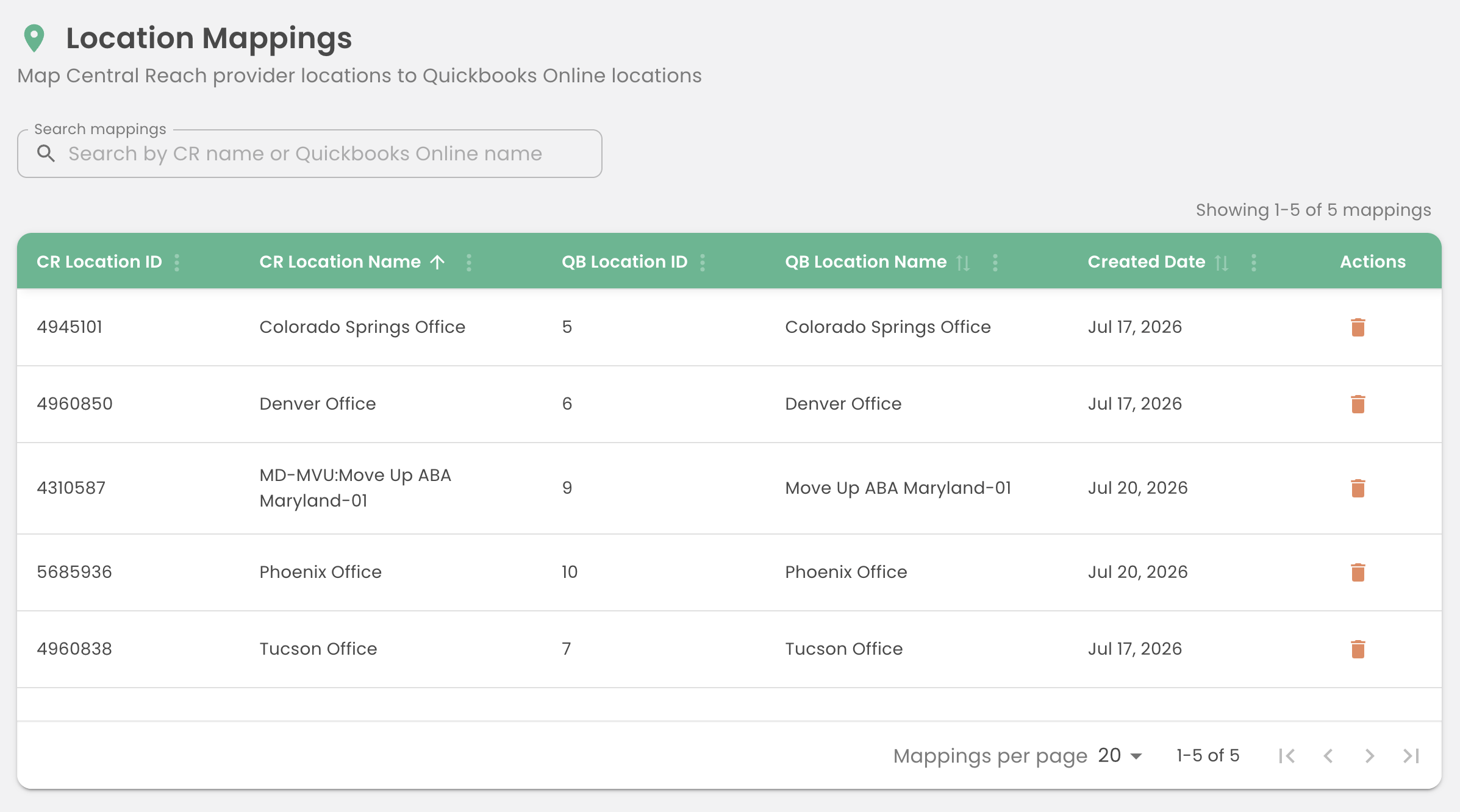
/app/mappings/locations) — titled Location Mappings, "Map Central Reach provider locations to Quickbooks Online locations".
Each page lists your existing mappings. Use the Search mappings box ("Search by CR name or Quickbooks Online name") to filter the list. The table shows the Central Reach ID and name, the QuickBooks ID and name, a Created Date, and an Actions column.
Creating vs. managing: the key distinction
This is the part users most often get confused about, so it's worth being precise.
The Mappings pages are for viewing, searching, and deleting mappings. They are not where you create or edit them — there is no "Add" or "Edit" button on any Mappings page.
You create mappings during a CSV import
Mappings are created as part of a CSV Import. When Qlarity finds entities in your upload that aren't mapped yet, you resolve them with either:
- Map Unmapped Entities — a guided bulk wizard that walks you through each unmapped entity in turn, or
- the per-row Map button, to handle them one at a time.
For the full walkthrough, see Mapping Unmapped Service Entities and Running a Sync.
You manage existing mappings here
Once a mapping exists, the Mappings pages are where you review it, search for it, and remove it if it's wrong.
Mappings are reused automatically
Because Qlarity stores your mappings and applies them on every future import and sync, a correctly mapped entity never needs your attention again — until you choose to delete it.
Changing or removing a mapping
There is no in-place edit. To correct a mapping, delete it and let Qlarity re-prompt you for it on your next import.
- On the relevant Mappings page, find the mapping (use Search mappings if the list is long).
- In the Actions column, click the trash Delete mapping action.
- Confirm in the Delete Mapping dialog. It warns that "This action cannot be undone."
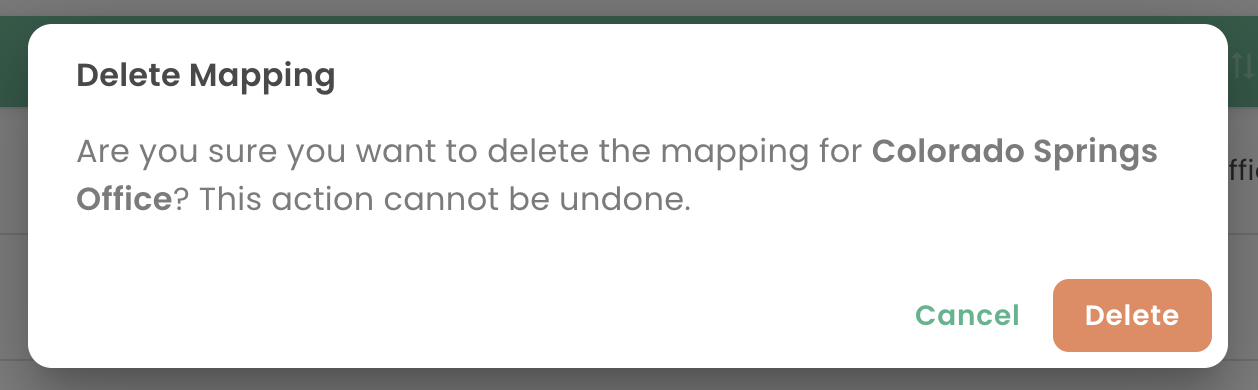
After deletion, the entity is unmapped again. The next time you import a file containing that entity, it will show up as unmapped, and you re-create the mapping through the import flow described above — this time pointing it at the correct QuickBooks entity.
Map once, then forget it
Because mappings persist and are reused automatically, the common workflow is: map each entity once during import, and only ever return to these pages when something needs to be removed and re-done.