Running a Sync
A sync moves your Central Reach billing into QuickBooks Online in two stages you run in order: first import the Central Reach CSV into Qlarity to create invoices, then sync those invoices to QuickBooks. This guide walks through both.
Before you start
Make sure QuickBooks is connected on your account page and you have an active subscription. If you haven't connected yet, see connect QuickBooks.
Stage 1 — Import the Central Reach CSV
In this stage you upload a billing export from Central Reach and Qlarity turns the eligible rows into invoices.
Upload your CSV
-
In the sidebar, click CSV Import to open the CSV Import page.
-
Provide the CSV exported from Central Reach — a billing/charge export. Drag and drop the file onto the upload zone, or click it to browse. The upload zone accepts
.csvfiles only, with a Maximum file size: 25MB and Maximum rows: 10,000.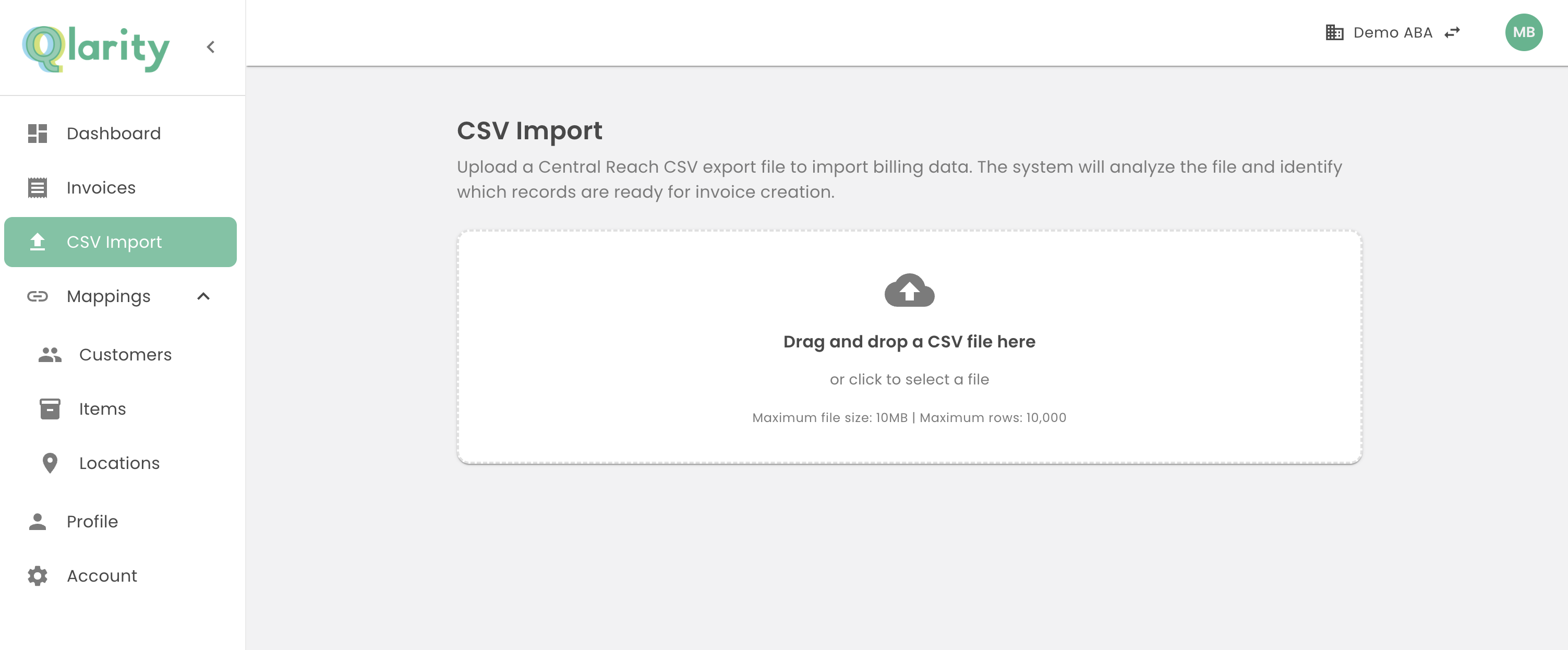
Importing a CSV Billing File
Filter in Central Reach first
Filtering your export in Central Reach before you download keeps the results clean and your import short. See Unable to Import for a saved filter you can reuse.
Review the analysis
Once the file is uploaded, Qlarity shows an analysis view with readiness stats and any problems it found in the file.
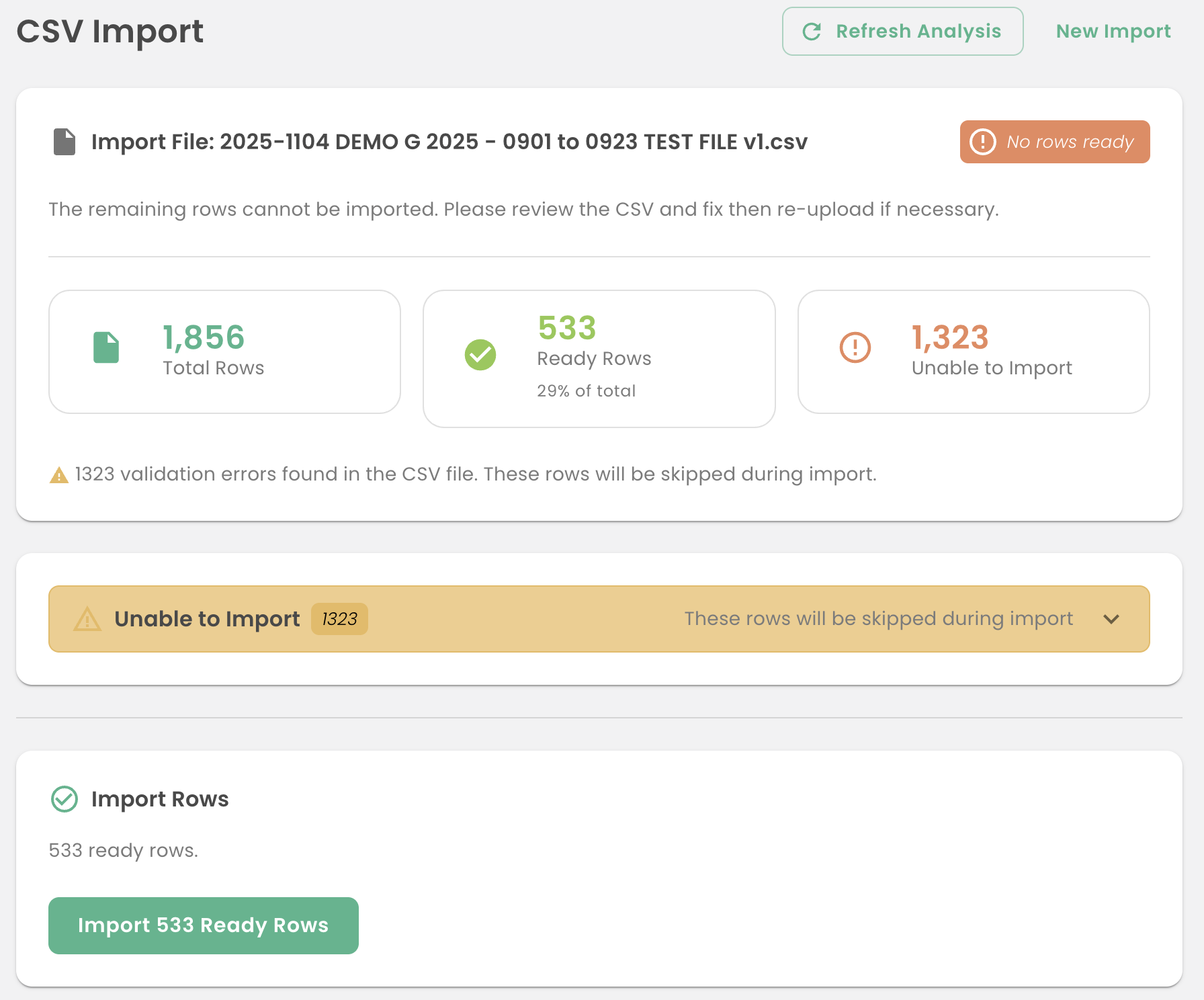
CSV Files are Analyzed in Qlarity
For a breakdown of what these numbers mean, see Understanding Sync Results.
Resolve unmapped entities
If any entities in the file aren't mapped yet, resolve them before importing:
- Use Map Unmapped Entities to work through them in a bulk wizard, or
- Use the per-row Map button to handle a single entity.
After mapping, click Refresh Analysis to recompute the readiness stats. For help with mapping, see Mapping Service Entities and Managing Mappings.
Import the ready rows
-
In the Import Rows section, click Import {N} Ready Rows, where {N} is the number of rows ready to import.
-
Review the Confirm Import dialog. It summarizes the counts and warns that This action cannot be undone.
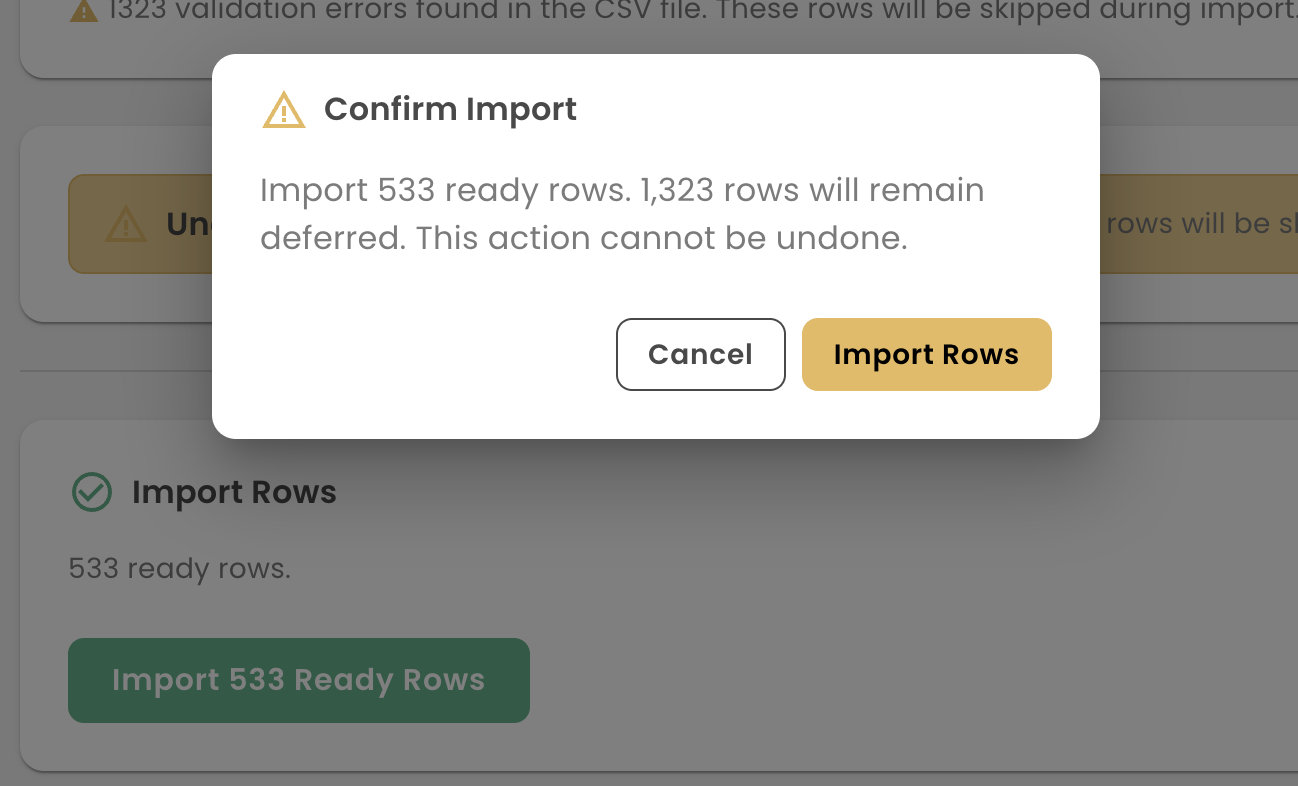
Confirm Invoice Creation in Qlarity
-
Click Import Rows to confirm.
Qlarity creates the invoices and shows a summary — Import Complete, or Import Completed with Errors / Import Failed if something went wrong. The page doesn't redirect on its own; click View All Invoices when you're ready to move on.
One import at a time
Only one import session is active per account at a time. If you start a New Import while another is still open, Qlarity asks you to discard the in-progress one first.
Stage 2 — Sync invoices to QuickBooks
With your invoices created, the second stage pushes them to QuickBooks Online.
-
In the sidebar, click Invoices to open the Invoices page. Newly created invoices start with a status of Ready to Sync.
-
Sync your invoices:
- To sync one, use the per-row Sync to Quickbooks action. You can also open an invoice and use the Sync to Quickbooks button on its detail page.
- To sync several at once, select the rows and click Sync Selected in the toolbar. You can sync up to 100 invoices per operation.
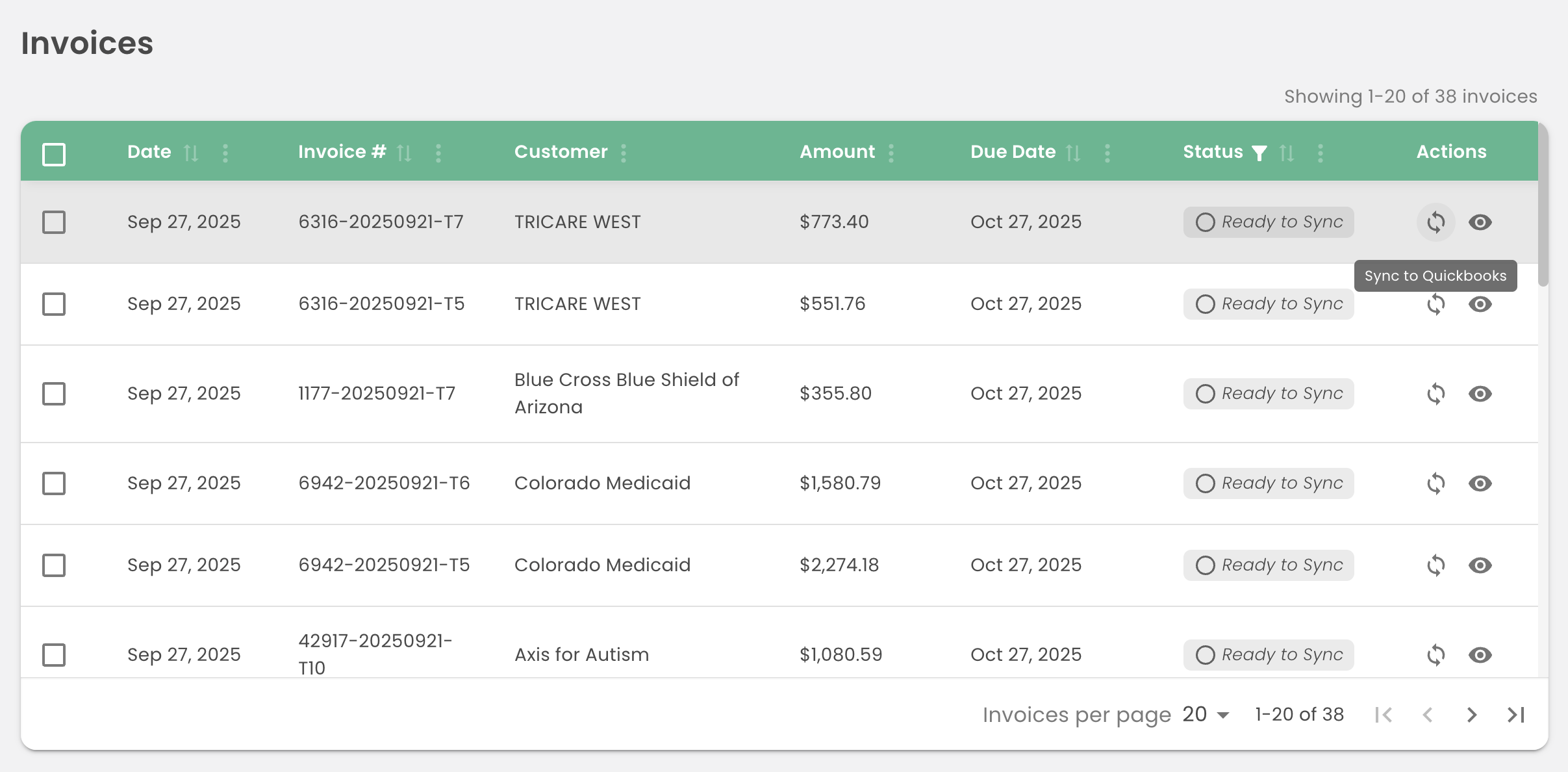
Sync Invoices to Quickbooks
As each invoice runs, its status badge updates — Syncing, then Synced when it lands in QuickBooks, or Failed if it doesn't. For the full meaning of each status, see Understanding Sync Results.